AmbirScan ID Setup
Please follow steps 1 through 7 to configure your scanner with AmbirScan ID Scanning Solution.
For Mac Click here to download and then follow steps 5 on.
Step 1. Download your scanner driver from the list below.
Step 2. Click your downloaded driver file to install your scanner driver.
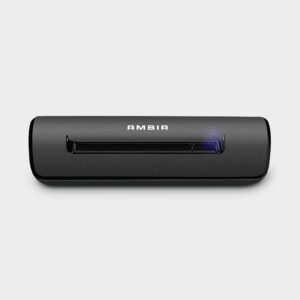
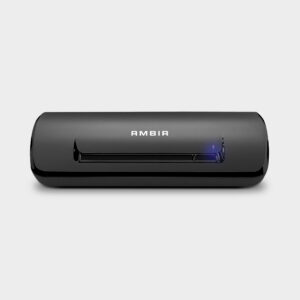
Step 3. Plug in your scanner.
Step 4. Download and Install AmbirScan
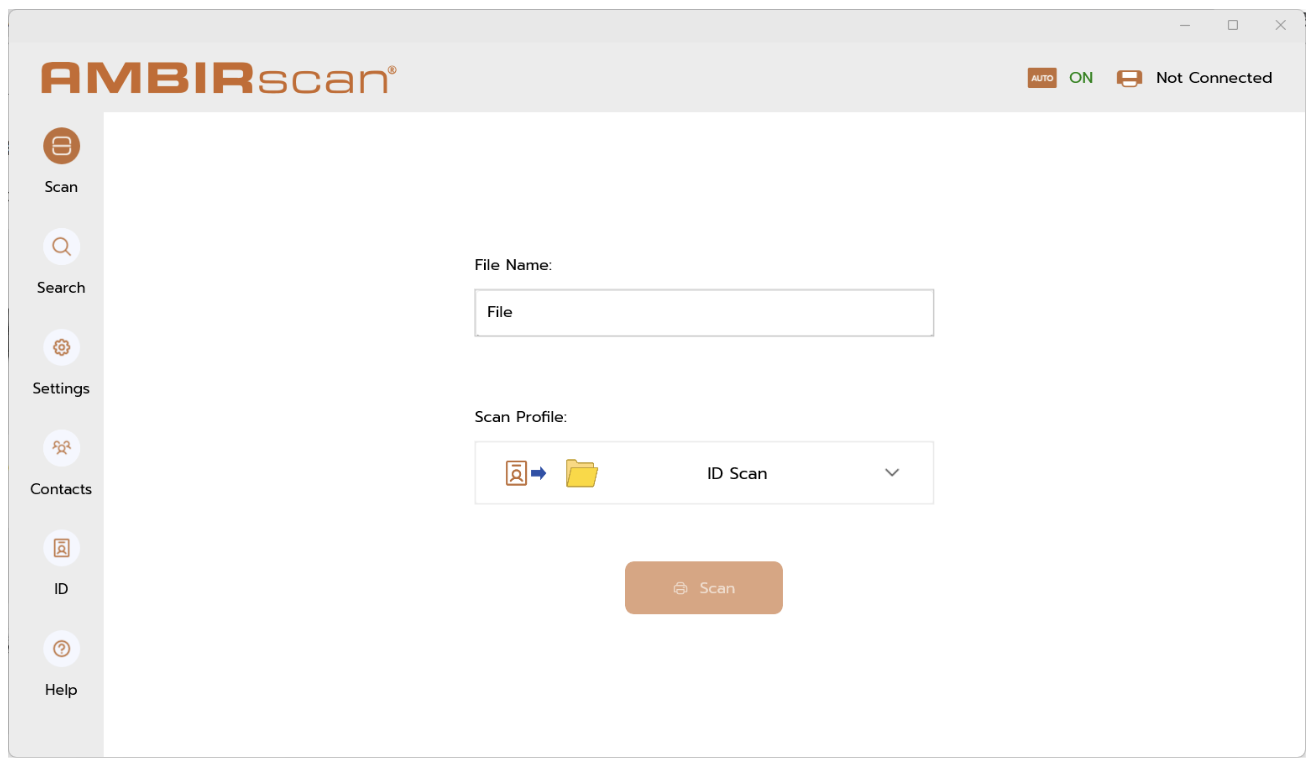
Step 5. Click on the AmbirScan Icon on your desktop.
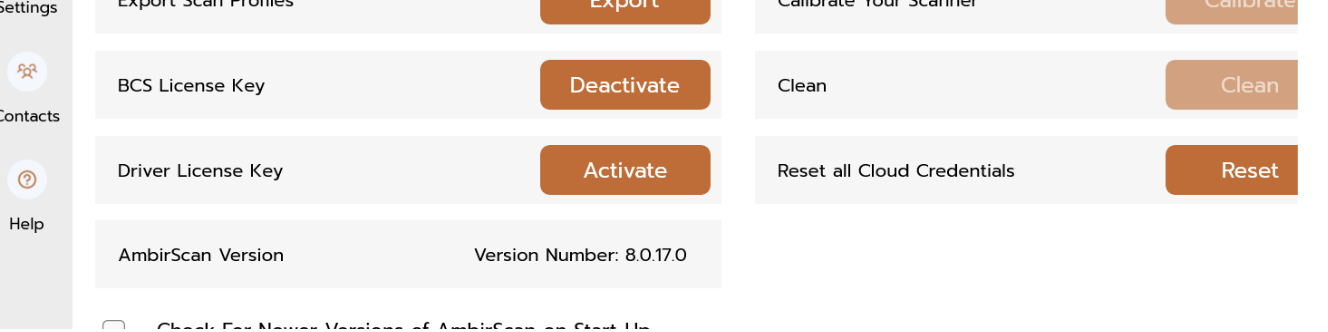
- Go to the Settings Tab in the ambirscan software.
- Scroll down and select activate next to Drivers License Key.
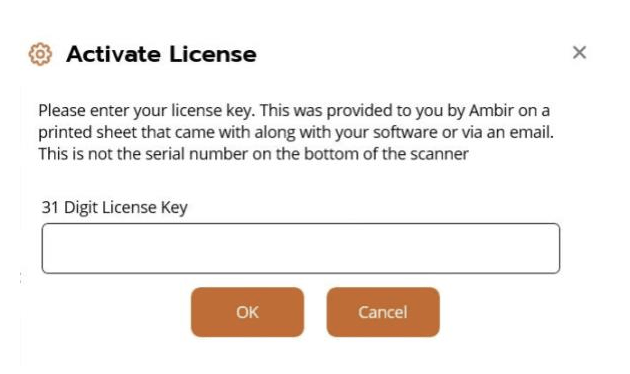
Step 6. Enter license key on insert with the scanner or with that came via email.
- Click Activate to open the pop up. This is where you will enter you 31-character long key.
Step 7. Return to the main Scan Tab.
- Make Sure an ID Scanning Profile is selected.
- Start Scanning ID Cards
NOTE: For simplex scanners like the PS667 you will need to scan the front and back of the ID Card.
For more detailed information on using the software please refer to the AmbirScan user guide found on this page.